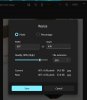
Jane - I see you've now managed to add an image (I wrote this before I spotted it), but I'll post anyway as it might help someone else.
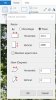
If you want to see all of a picture in a post without scrolling (that's when you use Insert as Full Image) it needs to be no more than about 650 pixels wide. If you insert it as a thumbnail you can go wider, because the pop-over window is bigger. How you do this depends on the program, but it will almost always be in a tool called Resize.
Here's a screenshot for how to find it in Microsoft's Paint - it's in the Home tab:
In the newer Paint 3D it's in the Canvas tab:
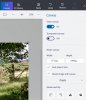
It's easier to work in pixels rather than percentages, and make sure you tick the option to lock/maintain/preserve aspect ratio. In some programs you type in one box and the other changes automatically, and in others you need to type in one, then just click in the other to make it change. (In Paint 3D you also need to tick Resize image with canvas.)
If the file is a .jpg or .jpeg, the file size (the Mb or Kb value) of anything of 650 pixels wide or less should be within the forum limits, but if necessary you can make it smaller by reducing the quality. This might be part of the resize tool (as in Wendy's clip) or in the Save As options.
That's an important point - don't do any of this to your only copy of a picture. Either make a copy first and work on that, or make it read-only - that will prevent you doing a simple Save, and you'll have to do Save As instead.
Besides all this, it may be useful to use the Crop tool first, to select a small part of a larger image for uploading. In some cases, doing that on its own might reduce the dimensions and file size enough so you don't need to do a resize.
I hope that helps.